Installation
The current version of the script is always available on our website:
DA-FormMaker Download
The download is a ZIP archive. It must be unpacked for the installation.
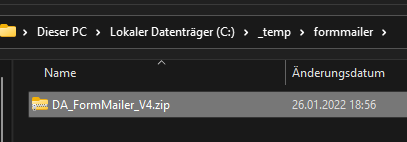
Setting up "config.php"
The script is configured via the file "config.php". Open it with a text editor. We recommend an editor such as Notepad++.
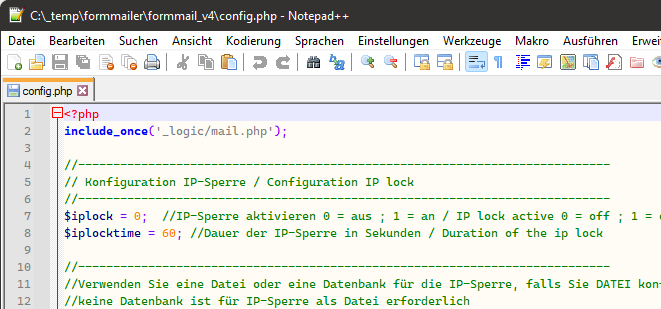
When saving, make sure the file is saved as a UTF-8 file, without BOM.
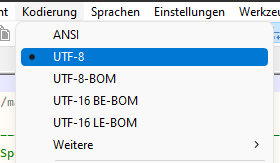
Otherwise errors may occur while the script is running. The file contains various sections and settings. Please also note the comments in the file.
IP lock
The IP lock checks whether the form has already been submitted from an IP address within a defined period of time. If so, the form will not be submitted again. The lock serves as protection against the form being submitted en masse. To activate it, set the value to 1:
$iplock = 1; //enable IP lock 0 = off ; 1 = on
You can also define the time period during which the lock applies:
$iplocktime = 60; //duration of the IP lock in seconds
The value is specified in seconds.
Database credentials
The database is used for the IP lock, the captcha spam protection, the time check and the word blacklist, and is required. Create a MySQL database and enter the credentials here:
$dbname = 'formmail';     //database name
$dbhost = 'localhost';    //database server
$dbuser = 'root';         //user name
$dbpass = '';             //password
Enabling the log function
With the log function, the emails are additionally stored in the "archiv" folder. $conf_log = 0; //1 = enable log
Enabling the log function
With the log function, the emails are additionally stored in the "archiv" folder. $conf_log = 0; //1 = enable log
Enabling the spam filter
The following option enables the spam filter:
$conf_antispam = 1;
The spam filter analyzes the emails and discards spam messages. As a rule, we recommend using the spam filter. We explain the exact function of the spam filter and how to set it up in a later chapter.
If you want to test the spam filter, you can not only discard spam emails but also send them to your own email address for review. This can be done with the following setting:
$conf_antispam_copy_mail = 1;
$conf_antispam_mail_address = "devnull@ekiwi.de";
If this setting is set to "1", spam messages are not discarded but sent to the given email address instead. This allows you to check whether the spam filter is working correctly.
Error pages
The following are various settings for error pages. Some of these pages can be overridden by the form. If none are specifically defined in the form, these will be used. The error pages are HTML files stored in the "errorpages" folder right next to the script and are referenced relative to the script. You can customize the templates there as needed.
$IPErrorPage = 'errorpages/blockip.htm';
Defines the error page that is displayed when the IP lock prevents the form from being submitted.
$CaptchaErrorPage = 'errorpages/blockcaptcha.htm';
Defines the error page that is displayed when an invalid captcha has been entered.
$FileErrorPage = 'errorpages/blockfile.htm';
Defines the error page that is displayed when the configured maximum file size has been exceeded. You can define the maximum file size with the following setting:
$max_attach_size = 5000000;
The value is specified in bytes. 1 megabyte corresponds to 1048576 bytes.
$BlockFilePage = 'errorpages/blockfiletype.htm';
The error page for file uploads that are not allowed. By default, all file types are allowed for upload. To only allow certain file types, change this line:
$BlockFileList = array();
To only allow certain file types or extensions, specify them in the array:
$BlockFileList = array( ".pdf", ".exe", ".doc", ".xls" );
The entries are separated by commas and must be specified in quotation marks including the dot.
Configuring email sending
Another important point is the sending method; you can choose between Sendmail and SMTP:
$c_mail_send_type = MailSend::Sendmail;
Or
$c_mail_send_type = MailSend::SMTP;
Sendmail sends the emails directly via the web server. This option requires no further configuration, but has the disadvantage that spam filters sometimes filter out the emails if they come from a rather unknown server.
We therefore recommend the SMTP configuration. To do this, set up an SMTP account with your web host and then enter the credentials in config.php:
$c_smtp_host = "localhost";  //server address
$c_smtp_username = "yourname@example.com"; //user name
$c_smtp_password = "yourpassword";   //password
The transmission is encrypted; if the port differs, it can be set with the following option:
$c_smtp_port = 587;
If you encounter problems sending emails, e.g. emails not arriving, it can help to define a standard sender:
$c_standard_mail = "andy.dunkel@ekiwi.de";
This email address will then always be used as the sender email and should correspond to an existing address that belongs to the server or webspace.
If problems occur while sending, SMTP debugging can be enabled:
$c_smtp_debug = true;
If this setting is set to "true", detailed output is generated after sending. Error messages and warnings are then displayed. For production use, this setting must be set back to "false".
Captcha settings
In this section, the captcha can be configured, e.g. the number of noise elements, colors, etc. See "config.php" for details.